 High-Speed Local iPhone Transfer Software
 Transfer everything from your iPhone to Mac — in open formats you actually own.
AirDrop fails when you select 5,000 photos, and cloud sync holds your data hostage behind monthly subscriptions. Transfer photos, 4K videos, WhatsApp chats, contacts, and files directly to your Mac or external SSD.
- 100% local
- Notarized by Apple
- No account needed
- Free to try
Why open formats matter in iPhone transfer software
Many transfer tools lock your exported data inside proprietary viewer databases. When you transfer with iPhone Data Manager, every exported file works natively in macOS, Excel, Preview, and Contacts.
Open Format 01
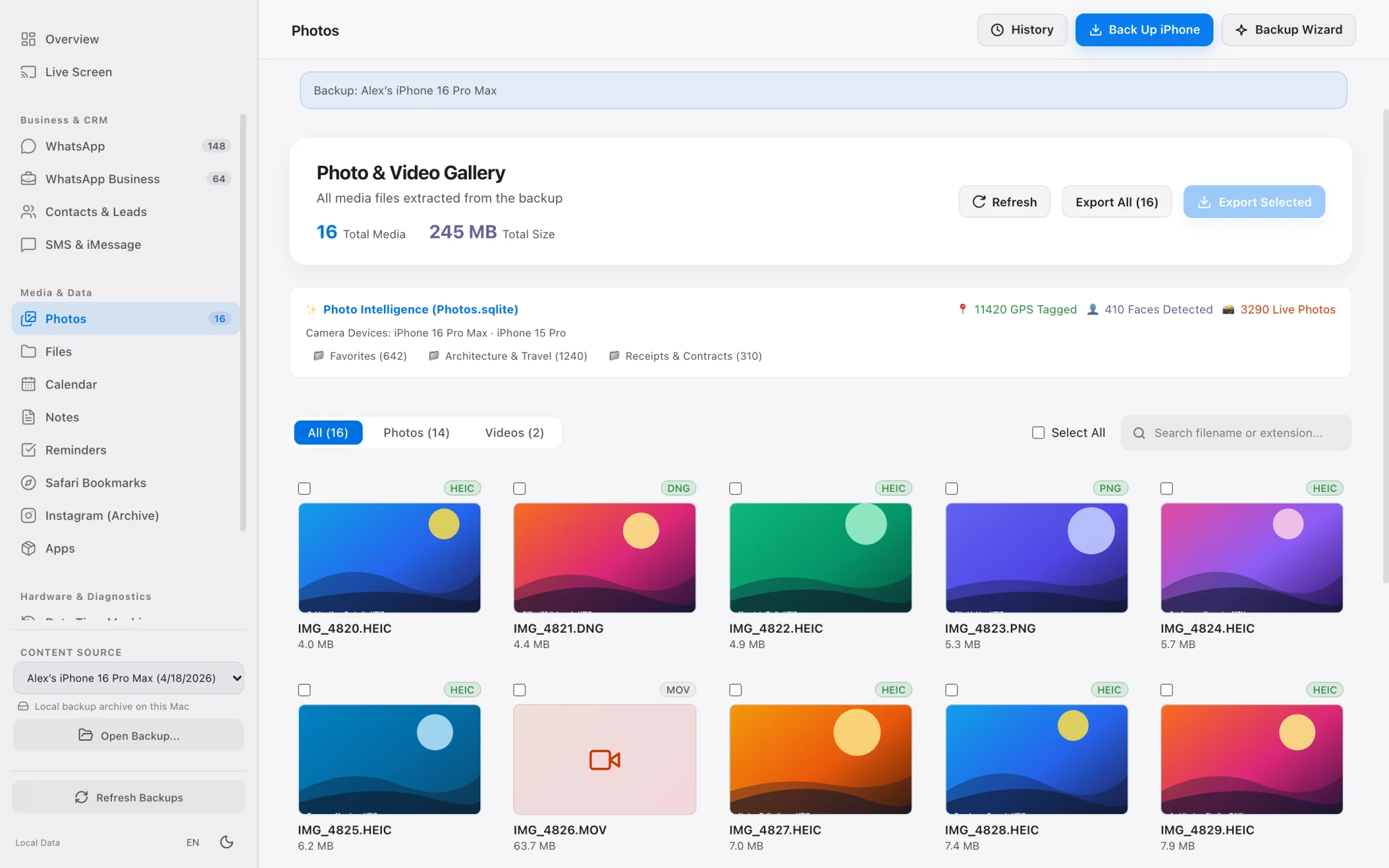
Photos & 4K Videos → Original HEIC, ProRAW & MOV
Transfer straight from a connected iPhone or from a local backup. Parallel worker threads saturate USB speeds, with an exact byte-size preview and instant cancel support.
Open Format 02
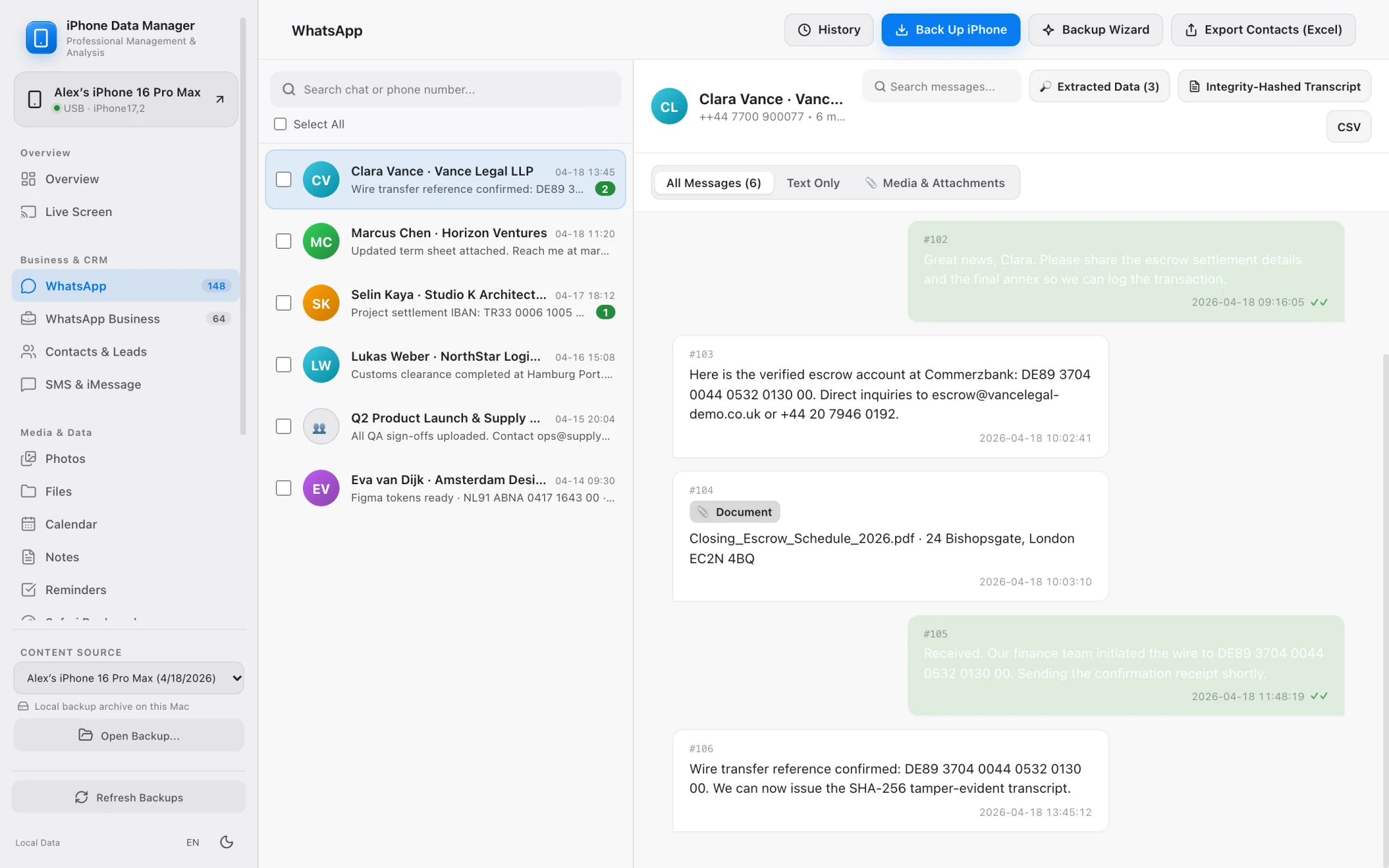
WhatsApp Chats → CSV, vCard & SHA-256 Verified PDF
Export tens of thousands of messages smoothly into spreadsheet-ready CSVs, extract business leads (phones, emails, addresses, valid IBANs), or print tamper-evident PDF transcripts.
Open Format 03
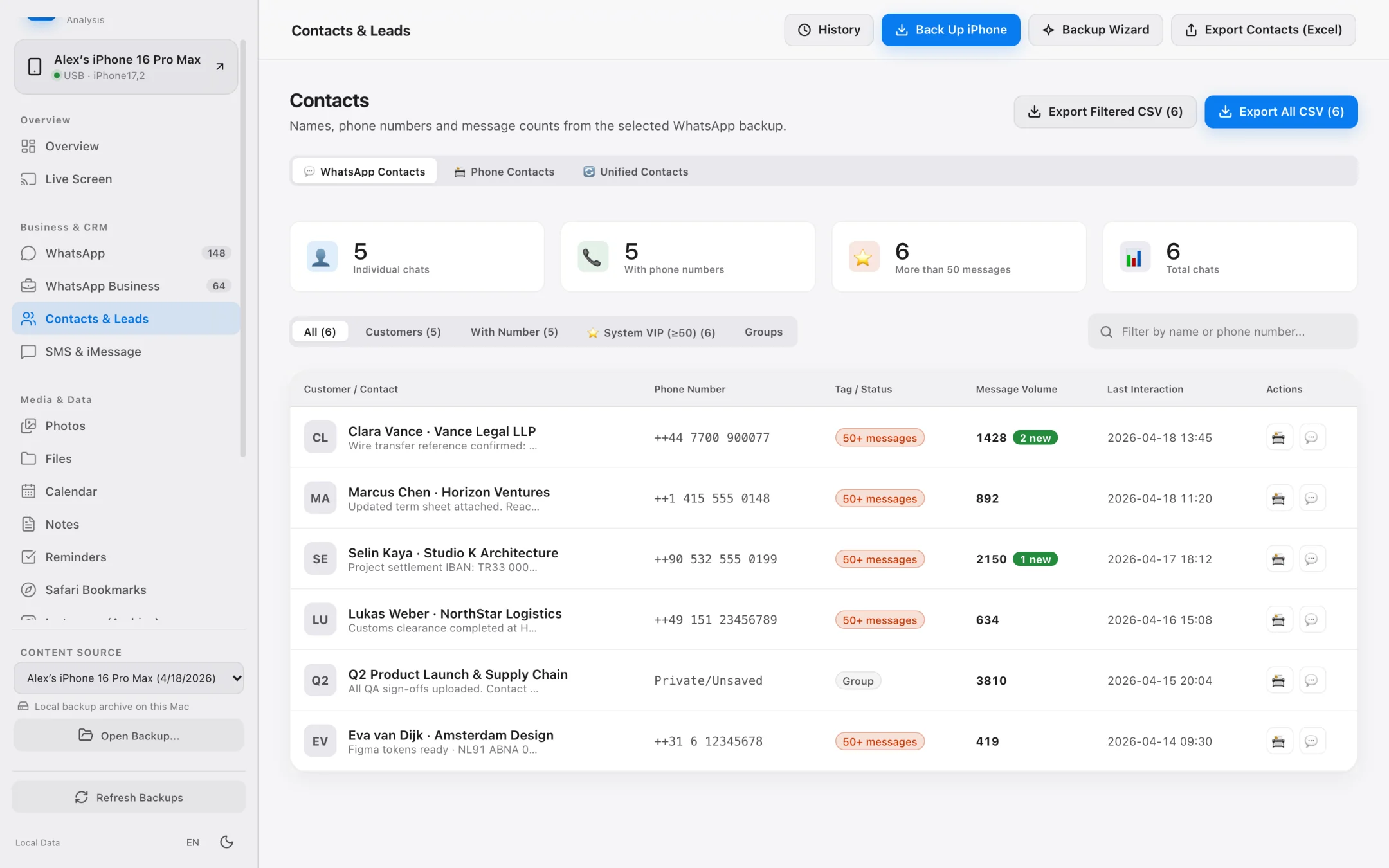
Contacts, SMS & App Files → vCard 3.0 (.vcf) & Native Folders
Filter contacts by company, phone, or email and export clean vCard 3.0 files. Extract SMS/iMessage media attachments and app folders with original directory structures intact.
WhatsApp & Business Workflows
Transfer WhatsApp conversations, leads, and verifiable transcripts.
Standard iPhone transfer methods completely ignore WhatsApp. iPhone Data Manager reads even massive multi-gigabyte chat databases effortlessly.
- Export complete chat histories to standard CSV files.
- Automatically scan chats for phone numbers, emails, physical addresses, and valid IBANs.
- Generate printable PDF transcripts where every message and document root carries a SHA-256 hash.
- Export discovered WhatsApp contacts directly to vCard.
Contacts & Messages Transfer
Move your address book and SMS/iMessage attachments cleanly.
Don't lose years of text conversations or end up with duplicate, messy contact cards when switching devices or archiving a work iPhone.
- Filter contacts by company, email presence, or phone number before exporting to vCard 3.0 (.vcf).
- Browse SMS and iMessage threads with dedicated media attachment lists.
- Transfer straight to an external USB-C or Thunderbolt drive to keep your Mac's internal disk free.
- Read-only transfer architecture guarantees zero accidental sync deletions on your iPhone.
Step-by-Step Workflow
How to Transfer Data from iPhone to Mac or External SSD in Open Formats
Move photos, videos, WhatsApp conversations, contacts, and files from your iPhone to your Mac without iCloud or proprietary format lock-in.
Connect your iPhone via USB or local Wi-Fi
Connect with a USB cable for first-time pairing and tap 'Trust This Computer' on your iPhone. Subsequent sessions work over USB or local Wi-Fi.
Select your data category and preview export size
Browse Photos & Videos, WhatsApp, Messages, Contacts, or Files. Review the exact item count and byte size before starting the transfer.
Export in standard open formats to Mac or External SSD
Run parallel transfers directly to any folder on your Mac or external drive in standard formats (HEIC/MOV, CSV, PDF with SHA-256 hashes, vCard 3.0).
Transfer Method Comparison
AirDrop vs. Finder / Photos Import vs. iPhone Data Manager
Why professionals, legal teams, and everyday Mac users use dedicated iPhone transfer software for large exports.
| Transfer Requirement | AirDrop / iCloud | macOS Finder / Photos | iPhone Data Manager |
|---|---|---|---|
| Bulk Photo & Video Transfer (10,000+ items) | Frequently times out or stalls | Imports into monolithic .photoslibrary bundle | Parallel transfer of original files to any Mac/SSD folder |
| Exact Export Size Preview | No | No | Shows exact file count & total GB before transfer starts |
| WhatsApp Chat & Media Transfer | Single-chat manual export limits | Not supported | Full database browser, CSV export & SHA-256 PDF transcripts |
| Business Lead Extraction (IBAN / Email / Phone) | No | No | Automated lead extractor exports structured CSV |
| Risk of Overwriting iPhone Data | Cloud sync deletions propagate across devices | Finder sync can overwrite local media libraries | Zero risk — 100% strictly read-only access |
Frequently asked questions.
Can I transfer data directly from my iPhone to an external hard drive or SSD?
Yes. Both full local backups and individual exports (photos, videos, WhatsApp transcripts, contacts, files) can be written directly to any external drive connected to your Mac.
Does transferring photos or videos reduce their quality or strip EXIF metadata?
Never. iPhone Data Manager transfers the exact original files (HEIC, JPEG, ProRAW, MOV, MP4) bit-for-bit without re-encoding, preserving all original EXIF, date, and location metadata.
Can I transfer over Wi-Fi, or do I need a USB cable?
Your very first connection requires a USB cable so you can tap 'Trust This Computer' and enter your passcode on the iPhone. Once your Mac is trusted, you can connect via USB or local Wi-Fi.
Is there a free version to test the transfer workflow?
Yes! You can download iPhone Data Manager for free, browse 100% of your data, run full local backups, and test sample exports. Connecting an iPhone also starts a 7-day trial with no credit card required.
Explore Specialized Workflows
iPhone Storage Manager
Free up gigabytes on your iPhone and Mac with external SSD backups, Lean Mode, and exact byte-size photo offloading.
iPhone File Manager
Browse accessible iPhone app folders and decoded local backup file trees without opaque SHA-1 filenames.
UltFone Alternative for Mac
See how a 100% native, Apple-notarized, read-only macOS app compares to cross-platform utility suites.
My Data Manager iPhone Guide
Track cellular data quotas in iOS and inspect live network traffic & local backups on your Mac.
See what is on your iPhone today.
Free to download. Browse your data and run full backups before paying a cent.