Forensic Extraction of AddressBook.sqlitedb: Recovering iPhone Contacts on macOS
A deep dive into decoding iPhone AddressBook.sqlitedb backups on macOS using SQLite, ABPerson tables, and automated Apple Silicon native workflows.

macOS 12 Monterey – macOS 15 Sequoia · SQLite3 & MobileSync Architecture
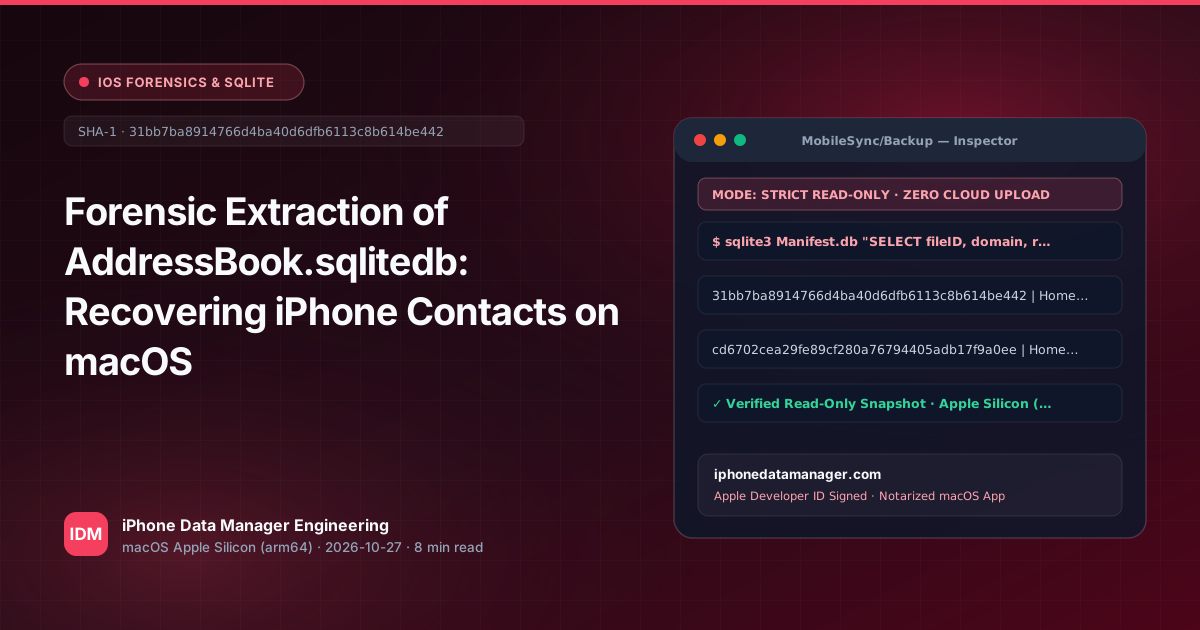
- ✓ Target file 31bb7ba8914766d4ba40d6dfb6113c8b614be442 represents Library/AddressBook/AddressBook.sqlitedb in iOS backups.
- ✓ Contacts are stored inside CoreData SQLite tables: ABPerson, ABMultiValue, and ABMultiValueLabel.
- ✓ Manual extraction via Terminal requires hashing fileIDs in Manifest.db, which is prone to APFS locking errors.
- ✓ iPhone Data Manager provides a 1-click read-only extraction directly to clean vCard (.vcf) or CSV formats.
1. Technical Architecture & How macOS Stores This Data
When you back up an iPhone via Finder or iTunes on macOS, iOS flattens its internal CoreData database structures into hashed filenames inside ~/Library/Application Support/MobileSync/Backup/. Specifically, the file 31bb7ba8914766d4ba40d6dfb6113c8b614be442 corresponds to the relative path HomeDomain-Library/AddressBook/AddressBook.sqlitedb. Companion thumbnail and photo blobs are stored under cd6702cea29fe89cf280a76794405adb17f9a0ee (AddressBookImages.sqlitedb).
Standard macOS utilities like the native Contacts app or iCloud sync often fail when you need to selectively restore deleted contacts without merging or overwriting your current Apple ID address book. Attempting to restore a full backup via Finder overwrites device state indiscriminately, making direct forensic parsing of the isolated backup SQLite database the gold standard for secure data recovery.
# Locate the backup directory and query Manifest.db for AddressBook
cd ~/Library/Application\ Support/MobileSync/Backup/<YOUR-BACKUP-UDID>
sqlite3 Manifest.db "SELECT fileID, relativePath FROM Files WHERE relativePath LIKE '%AddressBook.sqlitedb%';"Always make an isolated duplicate of your backup folder or open backup SQLite databases in read-only mode (-readonly flag). Modifying WAL (Write-Ahead Log) or SHM files can invalidate the cryptographic integrity of the iOS backup manifest.
2. Step-by-Step Manual Inspection via macOS Terminal & SQLite3
To extract contact details manually, you must join the ABPerson table (which holds first names, last names, organizations, and creation timestamps) with the ABMultiValue table (which stores multi-value properties like phone numbers, email addresses, and physical postal addresses).
iOS timestamps use CoreData / Cocoa reference dates (seconds elapsed since January 1, 2001, UTC). When querying ABPerson, columns such as ZFIRSTNAME, ZLASTNAME, and ZCREATIONDATE require parsing, and multi-value entries must be filtered by property type identifiers.
sqlite3 -readonly 31bb7ba8914766d4ba40d6dfb6113c8b614be442 \
"SELECT p.ZFIRSTNAME, p.ZLASTNAME, m.ZVALUE
 FROM ABPerson p
 JOIN ABMultiValue m ON p.Z_PK = m.ZRECORD
 WHERE m.ZPROPERTY = 3;"
3. Why Manual Extraction & Finder Often Fail on Large Datasets
Manual Terminal extraction is fraught with friction. Finder refuses to show granular contact contents without restoring the entire device. Furthermore, executing raw SQL queries against iOS SQLite databases requires deep knowledge of internal schema changes across iOS versions (such as iOS 16 vs. iOS 17/18 schema migrations).
Additionally, trying to convert raw SQLite rows into clean, importable vCard (.vcf) files or spreadsheets via manual Python or shell scripts often breaks character encodings (UTF-8/UTF-16) and fails to link contact photos stored in AddressBookImages.sqlitedb.
Never edit live backup files directly inside the MobileSync directory. Apple Silicon Macs utilize aggressive APFS snapshotting and Spotlight indexing that can lock SQLite files during active read operations.
4. Faster & Safer Workflow with iPhone Data Manager on Apple Silicon
iPhone Data Manager is built natively for Apple Silicon (arm64), offering a high-performance alternative to manual terminal scripting. It parses Manifest.db and AddressBook.sqlitedb instantly in read-only mode, mapping names, phone numbers, emails, and avatars without touching your live iCloud account.
You can export clean, standards-compliant vCard (.vcf) files or structured CSV spreadsheets with a single click, or offload heavy backups to external USB-C/Thunderbolt SSDs without cumbersome Terminal symlinks.
Run This Entire Workflow in 1 Click on Your Mac
Inspect Manifest.db, export SHA-256 verified WhatsApp PDFs, and back up directly to external USB-C/Thunderbolt SSDs without touching Terminal.
Frequently Asked Technical Questions
What is file 31bb7ba8914766d4ba40d6dfb6113c8b614be442 in an iPhone backup? +
It is the hashed filename for HomeDomain-Library/AddressBook/AddressBook.sqlitedb, which contains all SQLite-backed contacts from your iPhone backup.
Will extracting contacts from this database overwrite my iCloud contacts? +
No. Manual SQLite queries or exports using iPhone Data Manager generate standalone files (.vcf or .csv) that you can inspect or selectively import without triggering an iCloud sync overwrite.
How do I handle contact images linked in AddressBookImages.sqlitedb? +
Image blobs are stored separately in cd6702cea29fe89cf280a76794405adb17f9a0ee. Automated tools like iPhone Data Manager automatically correlate these image hashes with ABPerson records to export complete vCards with photos.
Does iPhone Data Manager require root privileges or Terminal symlinks to read backups? +
No. It operates natively as a sandboxed, high-performance arm64 macOS application that reads standard backup directories and external SSDs securely.
Related Engineering Guides
View All Guides →
Decoding 3d0d7e5fb2ce288813306e4d4636395e047a3d28: Mastering iPhone SMS Database Extraction on macOS
How to Open Manifest.db iPhone Backup on Mac with SQLite Queries