How to Open Manifest.db iPhone Backup on Mac with SQLite Queries
Dive deep into the internal architecture of iOS local backups on macOS. Learn how to query Manifest.db, decode file paths, and navigate Apple Silicon forensics with precision.

macOS 12 Monterey – macOS 15 Sequoia · SQLite3 & MobileSync Architecture
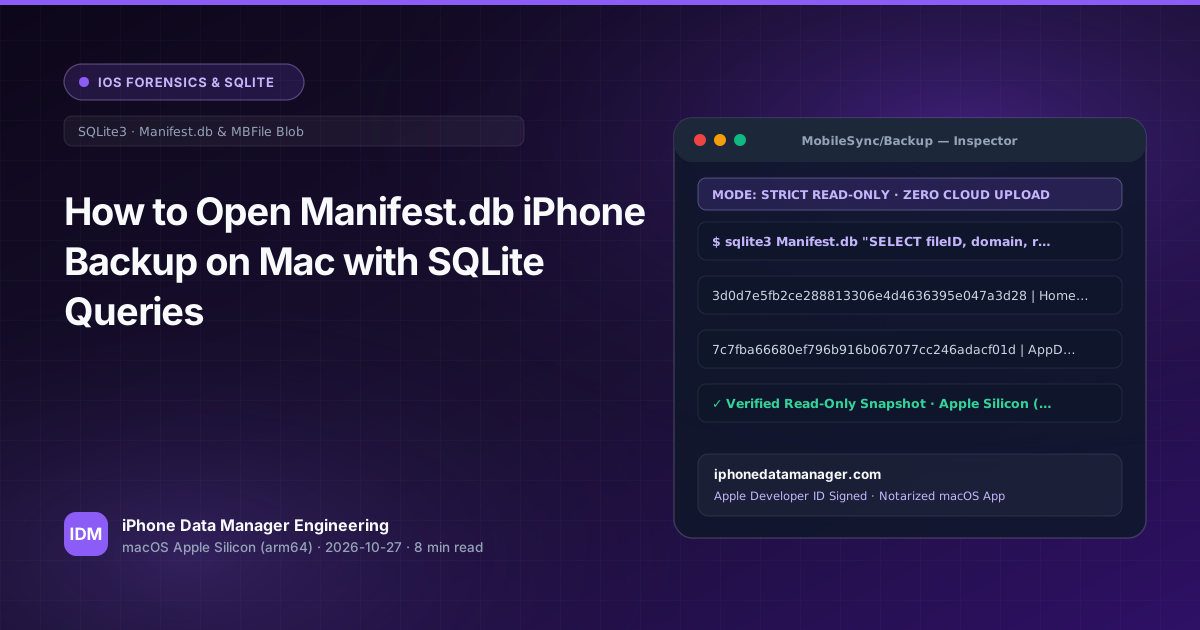
- ✓ iOS local backups reside in ~/Library/Application Support/MobileSync/Backup/ using a flat SHA-1 directory structure.
- ✓ Manifest.db uses the Files table where fileID acts as the first two hex characters (directory) and full SHA-1 hash (filename).
- ✓ Manual Terminal inspection requires handling NSKeyedArchiver bplists and SQLite WAL/SHM file locks carefully.
- ✓ iPhone Data Manager for macOS provides instant read-only visualization, external SSD support, and automated forensic exports.
1. Technical Architecture & How macOS Stores This Data
Apple's iOS local backup architecture, spanning iOS 10 through iOS 18, stores user data and system states inside a designated directory on macOS: ~/Library/Application Support/MobileSync/Backup/. Unlike older iTunes iterations, modern macOS backups discard hierarchical folder paths inside the physical storage layer. Instead, files are mapped through a SQLite database named Manifest.db and paired with a property list called Manifest.plist, while the actual payload files are renamed to their SHA-1 hash strings and scattered across 256 subdirectories (named 00 through ff) based on their first two hex characters.
Understanding this flat-file layout is mandatory for any forensic investigator or systems engineer attempting manual extraction. Standard macOS utilities like Finder or older terminal scripts cannot simply 'open' a backup as a folder tree because the relationship between human-readable filenames (e.g., Library/SMS/sms.db) and physical disk objects is entirely abstracted away inside Manifest.db. Direct querying of this database using sqlite3 is the only native method to bridge the gap between logical paths and physical SHA-1 artifacts.
# Navigate to your iOS backup directory and inspect Manifest.db tables
cd ~/Library/Application\ Support/MobileSync/Backup/
cd <YOUR_BACKUP_UDID_FOLDER>
sqlite3 Manifest.db ".tables"Always make a working copy of Manifest.db and Manifest.shm/wal before executing write queries or mounting snapshots. Modifying live backup files can invalidate cryptographic checksums and compromise evidentiary integrity.
2. Step-by-Step Manual Inspection via macOS Terminal & SQLite3
To query the backup catalog, you must understand the schema of the Files table inside Manifest.db. The primary columns include fileID (the SHA-1 hash of the file path), domain (the logical container such as HomeDomain or AppDomainGroup), relativePath (the original path within that domain), flags (integer flags determining file type and encryption status), and file (a binary blob containing serialized NSKeyedArchiver metadata). By executing targeted SELECT statements, you can isolate specific databases like WhatsApp's ChatStorage.sqlite or Apple's sms.db.
When converting relative paths or parsing timestamps, remember that iOS databases utilize Apple CoreData epochs (seconds elapsed since January 1, 2001, 00:00:00 UTC). To convert these raw floating-point integers into human-readable timestamps within SQLite, you must add the constant 978307200 before passing the value through datetime(). Combining this timestamp conversion with domain filters allows forensic specialists to pinpoint exact file modification windows.
-- List top 10 largest domains and find paths containing SQLite databases
SELECT domain, relativePath, length(file) AS blob_size
FROM Files
WHERE relativePath LIKE '%.db' OR relativePath LIKE '%.sqlite'
ORDER BY blob_size DESC
LIMIT 10;
3. Why Manual Extraction & Finder Often Fail on Large Datasets
Executing manual queries via sqlite3 in the macOS Terminal works well for basic inspection, but scaling this workflow to a 256GB+ iPhone backup exposes severe operational bottlenecks. Reassembling files from their 2-character prefix subdirectories (e.g., moving 3d/3d0d7e5fb2ce... to its proper filename) requires custom bash loops or Python scripts. Furthermore, if the backup was encrypted via AES-256 with a user password, Manifest.db columns remain locked, requiring the master key derived from Manifest.plist and the user's decryption passphrase.
APFS file system quirks on macOS Sequoia and Sonoma also introduce caching traps. Heavy SQLite queries against multi-gigabyte backup databases can trigger unexpected swap usage and thermal throttling on MacBook Air models. Utilizing an optimized, native Apple Silicon (arm64) utility bypasses these manual script maintenance headaches, preventing accidental data corruption or incomplete file reassembly.
When analyzing massive backups on Apple Silicon Macs, ensure your Terminal session or external tool utilizes unified memory efficiently by avoiding redundant recursive globbing in bash.
4. Faster & Safer Workflow with iPhone Data Manager on Apple Silicon
iPhone Data Manager for macOS is engineered natively for Apple Silicon (M1, M2, M3, M4), delivering lightning-fast parsing of Manifest.db and Manifest.plist without requiring complex Terminal command chains. Because it operates in a strict read-only snapshot mode, it guarantees zero risk to your evidentiary backup files while instantly mapping SHA-1 blobs back to their original human-readable directory trees. It eliminates the need for manual symlinking when dealing with limited internal SSD space on MacBooks.
Beyond simple file extraction, the utility features specialized forensic modules including a WhatsApp ChatStorage.sqlite parser that generates court-ready SHA-256 PDF transcripts and automated business lead CSV exports (extracting phone numbers, email addresses, and IBANs). Combined with Data Time Machine snapshot diffing, iPhone Data Manager allows engineers to compare two backup states side-by-side, highlighting exactly what files were added, modified, or deleted.
Run This Entire Workflow in 1 Click on Your Mac
Inspect Manifest.db, export SHA-256 verified WhatsApp PDFs, and back up directly to external USB-C/Thunderbolt SSDs without touching Terminal.
Frequently Asked Technical Questions
Where are iOS local backups stored on macOS? +
iOS local backups are stored at ~/Library/Application Support/MobileSync/Backup/. Each backup is contained within a folder named after its device UDID.
What is the structure of Manifest.db in an iPhone backup? +
Manifest.db contains a primary table named Files with columns fileID (SHA-1 hash), domain, relativePath, flags, and file (an NSKeyedArchiver property list blob).
How do I decrypt an encrypted iPhone backup on my Mac? +
Encrypted backups store encryption metadata in Manifest.plist. You must supply the correct backup password to derive the key that unlocks Manifest.db records.
Can I read SQLite databases like sms.db directly from the backup folder? +
Not directly by name. Files in the backup folder are named after their fileID SHA-1 hash. You must query Manifest.db to map the hash to its original relativePath.
Related Engineering Guides
View All Guides →
Decoding 3d0d7e5fb2ce288813306e4d4636395e047a3d28: Mastering iPhone SMS Database Extraction on macOS
Forensic Extraction of AddressBook.sqlitedb: Recovering iPhone Contacts on macOS